

How to Recover Permanently Deleted Messages on Facebook on PC
Accidentally deleted your Facebook messages? Here’s how you can try to recover them on your PC.
Step 1: Check the Chat Archive
- Open Messenger on your PC.
- Click on Archived Chats next to your chat list.
- Search for the specific conversation if you have many archived messages.
- If located, you can unarchive the conversation by sending a message to the person, which will bring it back to your chat list.
Step 2: Request Copies from the Other Person
- Deleted messages aren’t removed from the other person's chat list unless you selected “Remove for Everyone.”
- Message the person and ask them to send you copies of the chat.
- If you can't find their name, start a new chat and explain the situation.
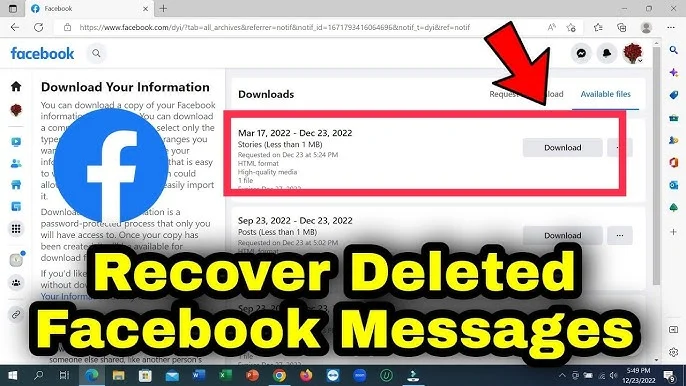
Step 3: Download Your Facebook Data
- Go to Settings & Privacy on Facebook.
- Click on Your Facebook Information and then View next to “Download Your Information.”
- Select categories you want, ensuring “Messages” is included.
- Choose HTML format for easy access.
- Pick the date range or let Facebook download all data.
- Click Create File and wait for Facebook to prepare the data.
- Once notified, download and unzip the file.
- Open the folder named with your username to find the messages.
Step 4: Backup Your Messenger Chats
- In Your Facebook Information, choose “Download Your Information.”
- Select the date range for messages.
- Ensure the “Messages” category is marked.
- Create the file and wait for Facebook’s notification.
- Download and store the data securely for future reference.
Remember: Archiving messages hides them, but they can be easily restored by sending or receiving a new message with that person.
By following these steps, you can attempt to recover your deleted Facebook messages on a PC.